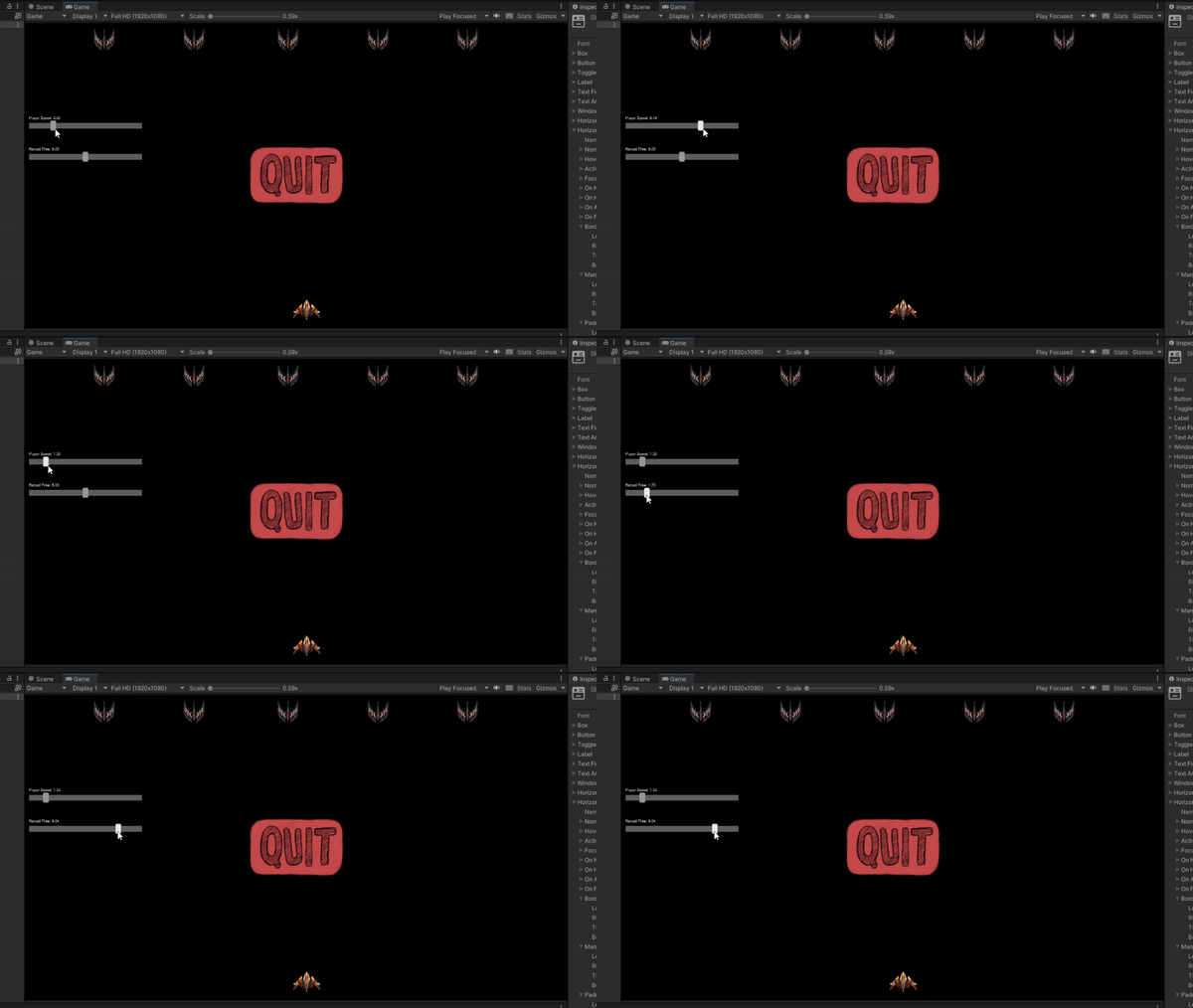
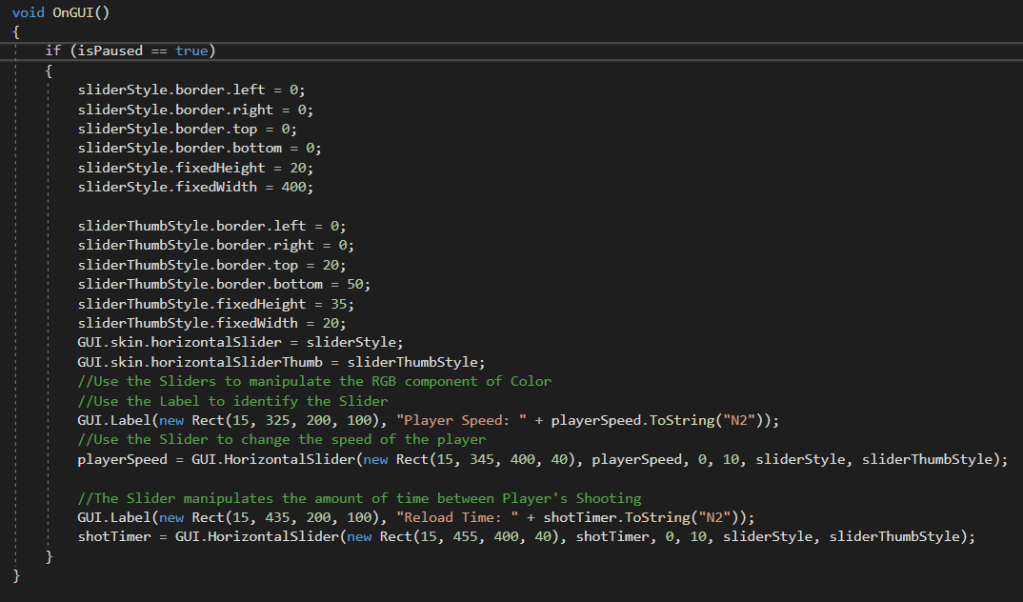
I give up, I’m done, this piece has gotten the best of me! That is what I could be saying, but instead I dug deeper and found the answer! I have been struggling with Horizontal Sliders last night and this morning, as they look horrible and are completely unusable. However, once you find the correct settings you can make them look like this, or even better!
It was incredibly difficult finding the correct usage, even after finding the available documentation, but once I cracked that, I found it to be extremely intuitive and easy to use. Again, the biggest hurdle was simply finding the correct usage withing the extremely lacking amount of documentation available. I still have a lot of work finding out what every number does, and how I can manipulate this to my liking, but the important part is I got the basics working, allowing me to deep dive into more of the slider settings.
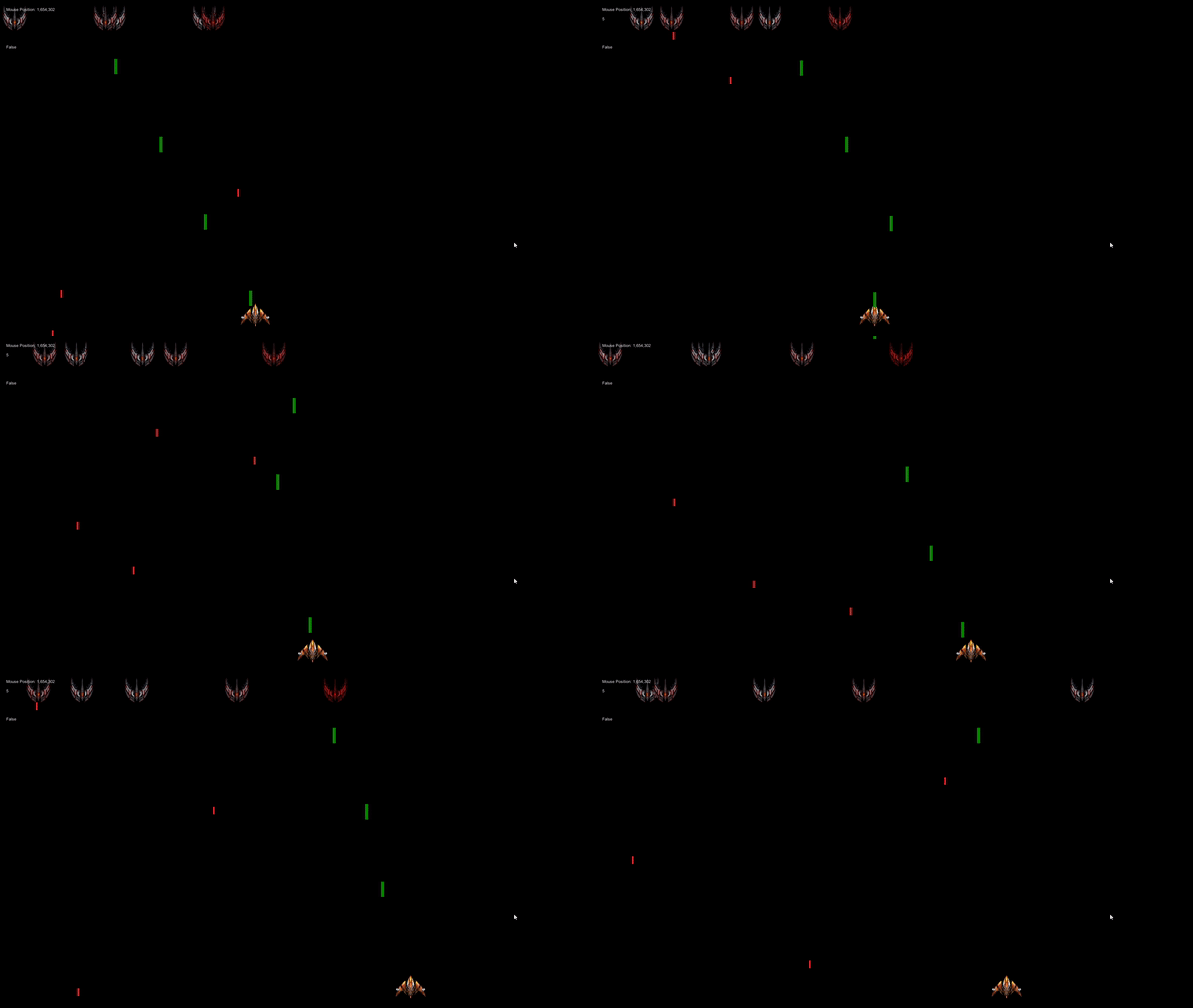
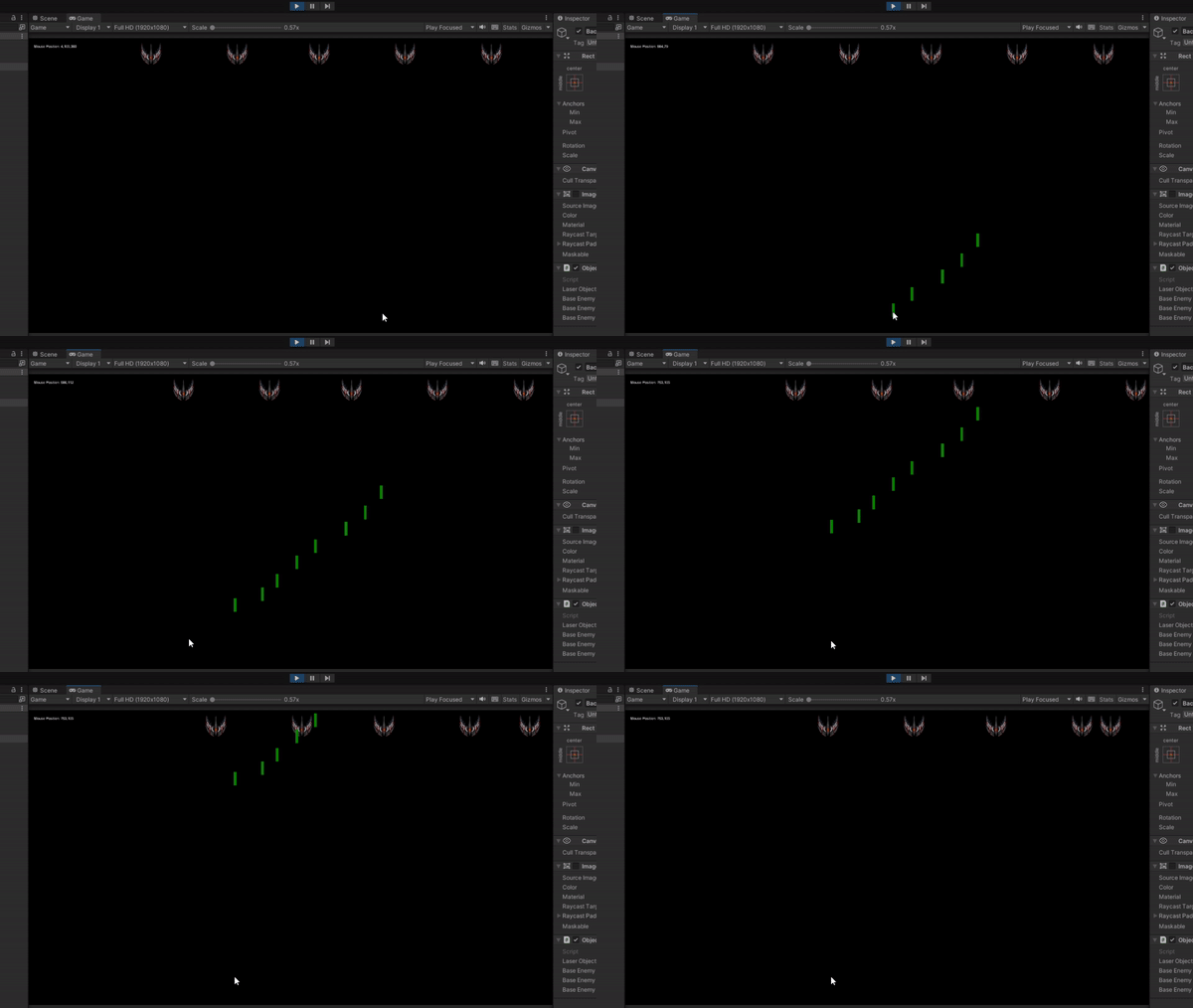
Today had some big wins, and that’s not just because I’m playing a video game. I managed to swap my entire Enemy system to a single object, where the color shows their remaining health. Not just that, but I added a player object, moved the lasers from the mouse to the new player object, and added a timer to prevent spamming your attack!
On top of all of these major updates, I added a pause function to the game, with a quit button, allowing you to close the game, whether you ran out of time or are rage quitting.
After discussing with a friend, my next plan is to add settings to the pause menu, such as player speed, bullet speed, and possibly more!
I have been working hard to fix and improve the game I have been creating, and I now have an extremely basic version of Space Invaders! I spent my time learning how to have one enemy become a damaged enemy when it gets hit, and how to remove the laser during the same collision. Originally, I couldn’t get the collision trigger to work, until I learned there was a difference between the 2D and 3D collision triggers, and then everything immediately worked. Then, it was all a matter of putting the pieces together.
Next piece I’m planning on working on is replacing these with health-based enemies. Instead of creating a new object to replace the first, the sprite will be determined by the amount of health left. I believe that would clean up my code quite a bit, and allow me to create new, different enemies with a lot less code. That being said, I am happy to have learned it the way I did, as it definitely has it’s uses. This is simply not the right use-case for that.
I took a break from learning today. Now, before you get confused as to why I’m still writing this blog post, just know I still learned something, it simply wasn’t Unity specific. I went to LinkedIn to update some information and found a Game Design series LinkedIn has for people to learn about what it means to Design a Game, and how to do it. You can watch this video series too, by going here! Though I didn’t learn how to program, or how to build a game, I did learn an important skill, and that is how to make a game. Near the beginning she claimed that the viewer would, by the end of the video, design their own game. I chuckled and kept watching. She claimed all you needed was a pen, paper, two coins, and a die. I said, “You know what, I have all of those easily, why not?” She told the viewer to draw a squiggly line down a paper, and as soon as I drew it, I knew. She just had me create the layout of a board game, and the coins are the two players.
She went on from there to discuss theory and best practice when designing games. For starters, a game requires a core. The basis of what the entire game is designed to be, designed to do. A core can range from RPG, or Puzzle, to Sailing Simulator, or First Person Shooter. Once you have that decision made, then comes the next, Features. Say it’s a Sailing Simulator, five features could include these: Unique Boats, Steering, Land Masses to avoid, Waves to challenge you, and Wind to teach you how to use it in your favor. From there you might say, “Fishing would be an amazing feature to add!” However, fishing is not required in a Sailing Simulator. With that added, any additional feature that is not required, should be added when there is extra time, not before. I learned more about the different types of Designers: Lead Game Designer, Level Designer, Content Designer, System Designer, Economic Designer, and Creative Director. Though, I’ll let her explain them all for you, all you have to do is watch her video series on it!
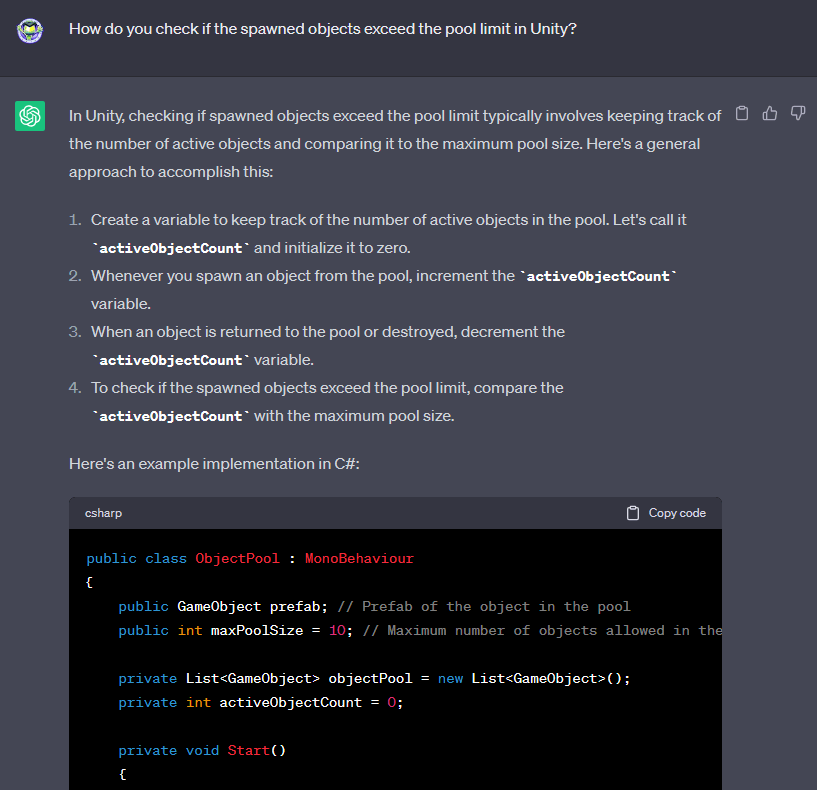
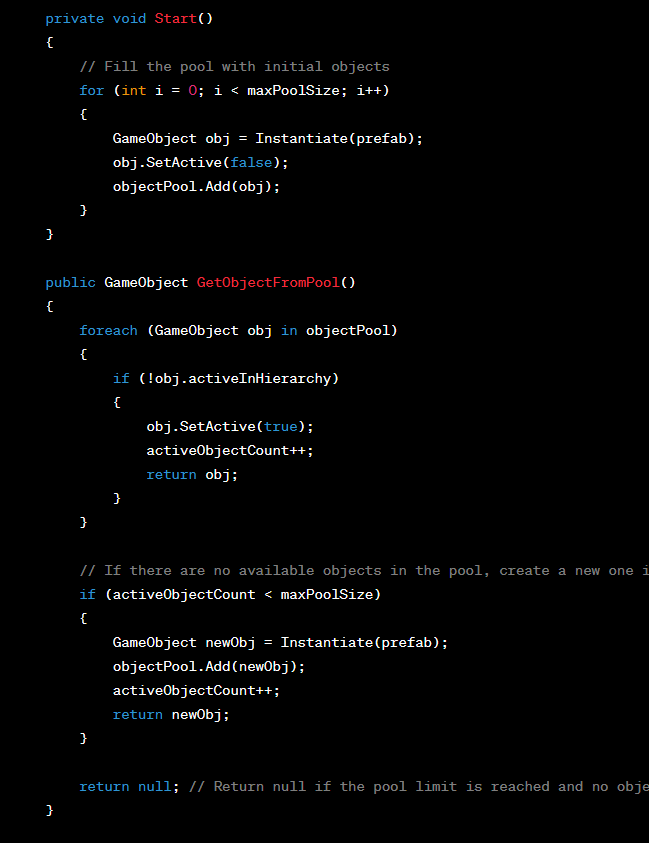
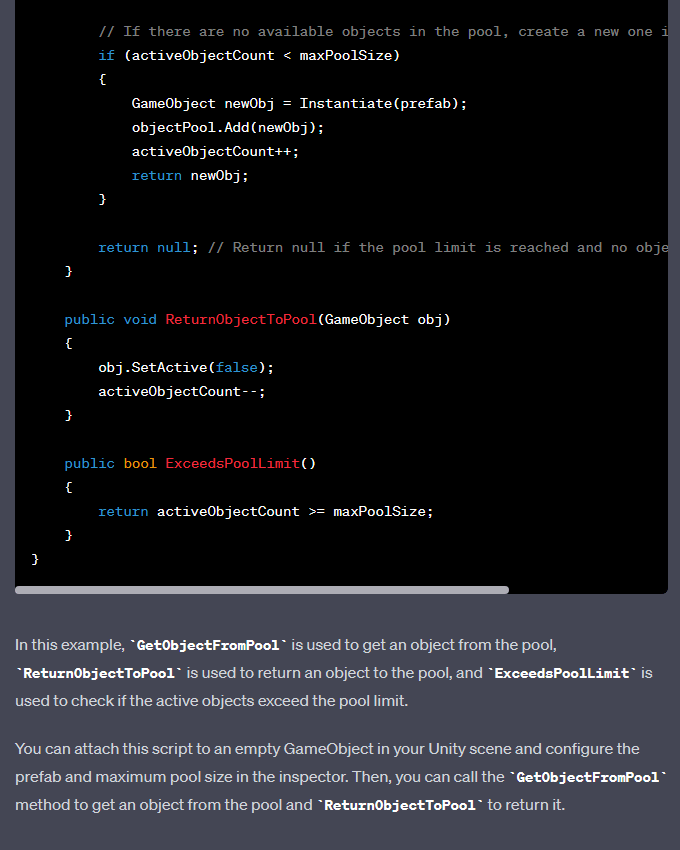
Extra! Extra! Read all about it! Today I asked ChatGPT for help for the first time. ChatGPT was extremely helpful as I asked it how to track whether or not my pool of items was over the limit. Once asked, ChatGPT got to work immediately! Not just did it give me the exact script that I needed, with adjustments to my own script, naturally, but it also gave me a full explanation on how to track it, and what this code does. The way ChatGPT explained this allowed me to easily adapt the template code to my current projects code without having to read through it, trying to make heads or tails, and eventually breaking my project in seven different ways. ChatGPT is not only a great tool for searching, but a great tool for learning, as it actively taught me how to use the script used to answer my question.
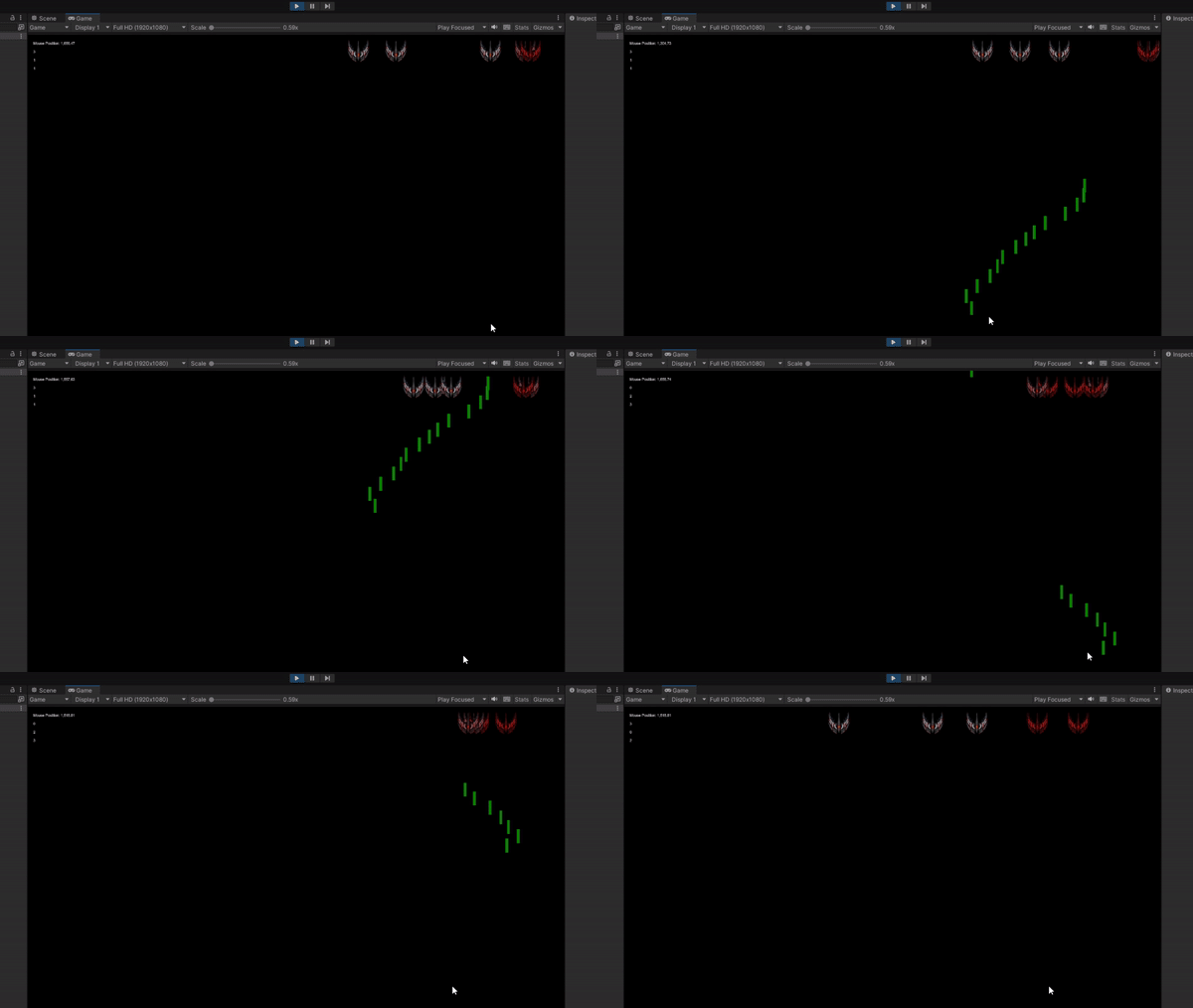
Buckle up and prepare for the ride, because I’m taking you off course today! After nearly a week of tutorials I needed to play around on my own for a little bit and decided to start making a somewhat simple game. It may look somewhat familiar to you, and that’s because it’s familiar to most of us! I’m making, to an extent, a recreation of Space Invaders!
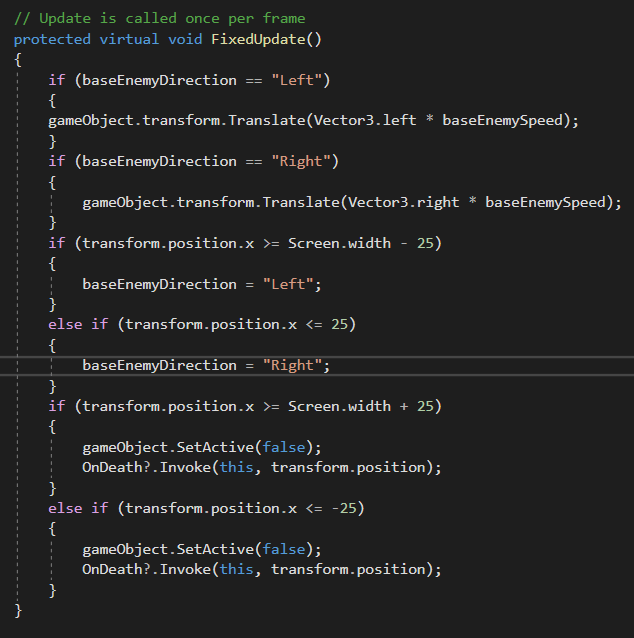
The laser and object spawning all work nearly identically to the other project I’ve been working on in the previous posts. However, we now have an enemy with movement. Not just any movement, but horizontal movement, changing directions after getting to the wall. I’m sure there is a better way to put these, but for now this will do, as it works perfectly. Next update I need to make to this game is a collision detector between the laser and the enemy ship. Overall, this has been fun messing around with so far, and I can’t wait to get the next piece of the puzzle up and running!
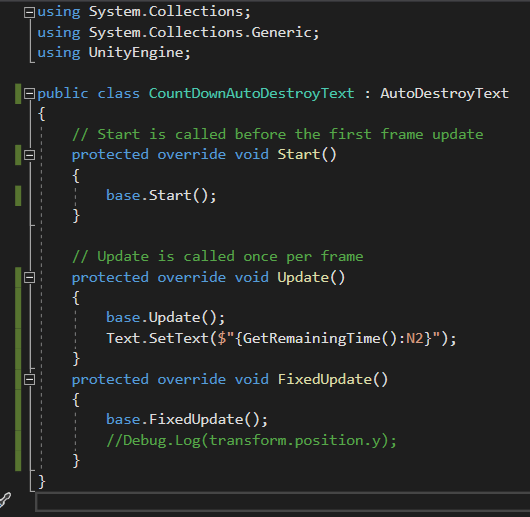
This lesson was a doozy! Only, though, from complete fault of my own. I learned all about inheritance, and how it can affect objects, and how to use it. My project has gained some major differences from the project in the tutorial, as I’ve shown in the past. For started, the text falls down off the screen, which was a challenge in the tutorial, not a long-term change, but I kept it. Another is changing the timer on the textboxes to show how long until they hit the bottom, instead of being a deletion timer. That being said, I pressed onward, trying to understand and adjust for the differences between his scripts and mine. The point of today’s lesson was to show how you can create a child variant that inherits properties from the parent object, while having some differences. This all fell apart, however, when I had to find a way to take the changes he made and make them work for the scripts that I had written. Again, understanding and adjusting!
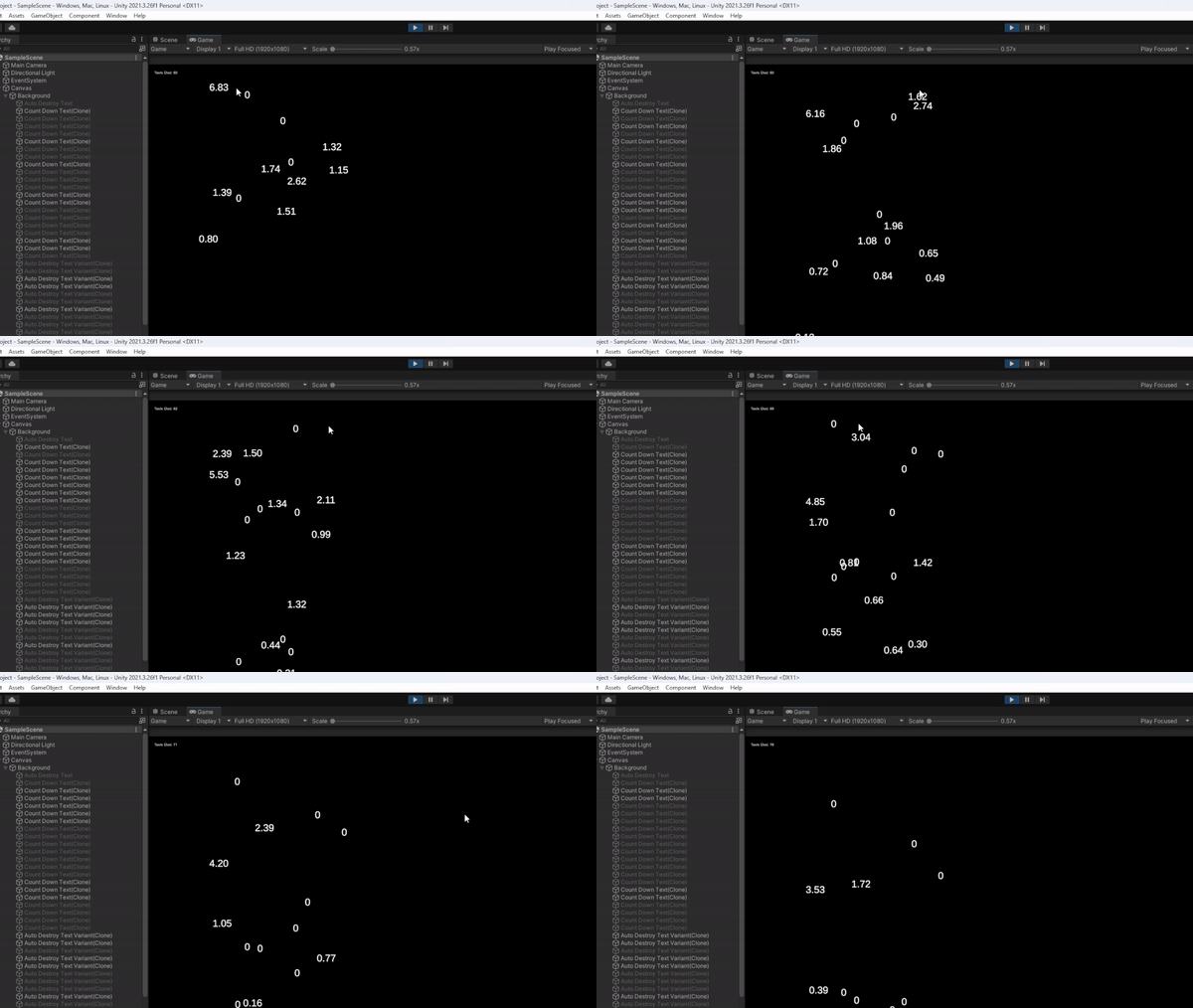
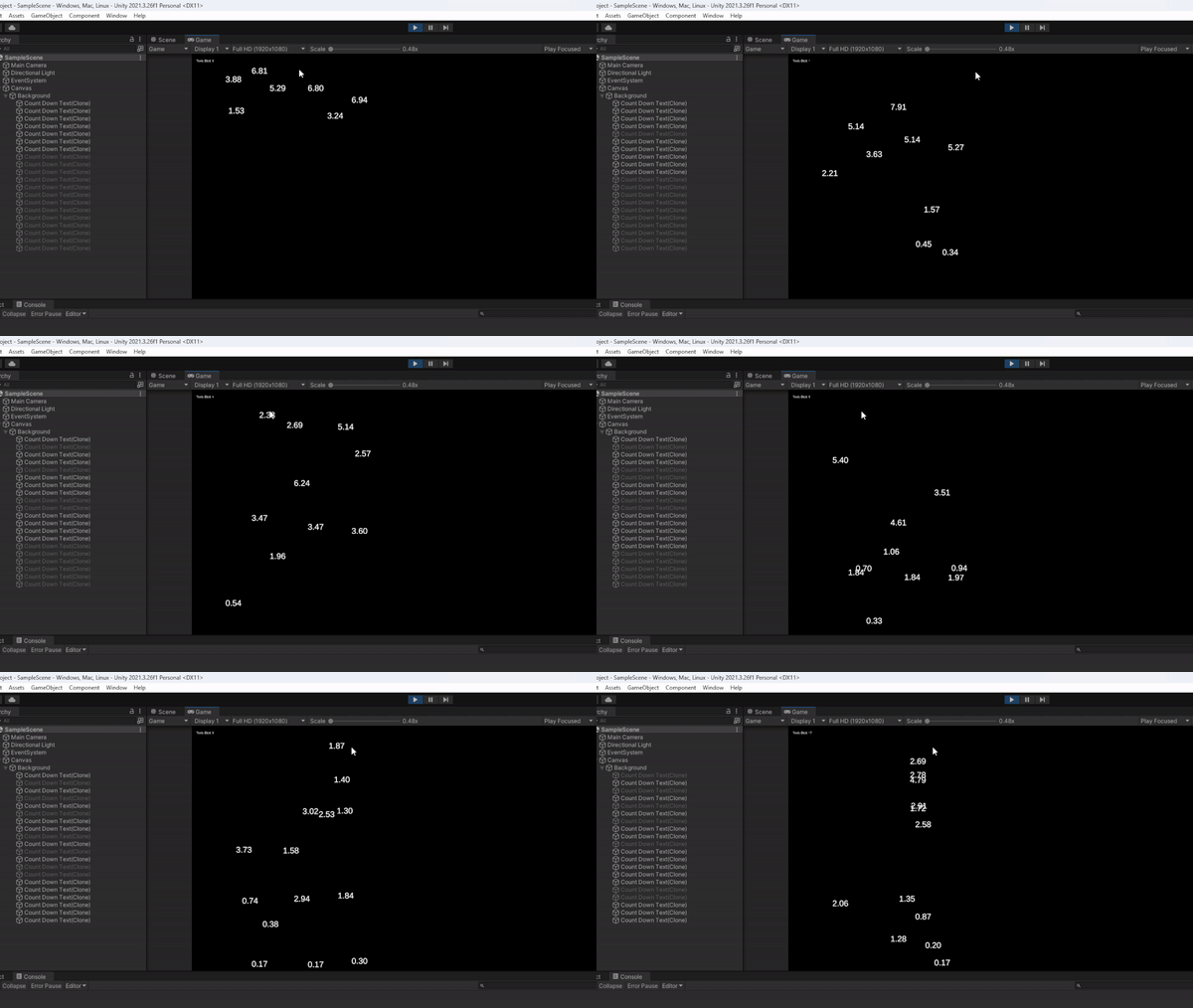
I managed to get it working! As you’ll notice, some have timers as they have before, and some have the number 0. The variants will simply count down as usual, while the parent object keeps the number at 0 the entire time. In terms of a video game, the textboxes that say 0 could be the base enemy object, while the textboxes with the timers could be an enemy with a weapon. That, however, is this videos challenge, so you may see that concept in a future blog post. As you can see, I cleaned up my script, removing pieces that were written with the old design and function in effect. Also, I learned the purpose of Protected Virtual and Override in this script. PV in the parent object’s script allows the variant’s script to read and mimic this code in the parent object’s script. PO allows the variant object to follow an altered behavior.
This lesson was interesting, for the simple fact that it is not used for every occasion. I learned how to create an object pool, meaning the game generates a given number of a specific object and instead of deleting and creating them, it simply enables and disables them. This is great in a game where you have a limited or set amount of a specific item, however it can quickly become a problem in games where an infinite number is required. If you specifically needed an object pool in that case, you would need a variable that gets adjusted over time, such as, “if object pool is full, raise max by one.”
You may recognize these falling timers from the rest of my posts so far, as I’m slowly adding to, or editing, the original project the tutorial began with. As you can see the greyed-out objects are the ones that have been “destroyed” but reaching the bottom, and thus, disabled. Then when I have reached the end and need to place more, the game places one of the previously disabled objects instead of creating a new one. Now, there are so many different areas in the script I could show you from what I’ve updated to make this all work, but I want to show the major change. This for loop tells the game how many premade objects to have in the object pool in the “i < 20” section, 20 being the pool size. Now for the original point of this game, as the tutorial meant it, both the x and y under Vector3 should be a random range from 0 to screen width/height. However, I changed them both to -10 to make sure they start disabled and do not count toward the “Texts Died” count, due to the differences between my script, and outcome, compared to the one in the tutorial.
Bonus information, I found out how he had the game showing the text at the top left, which then allowed me to show the very “Texts Died” count at the top left corner.
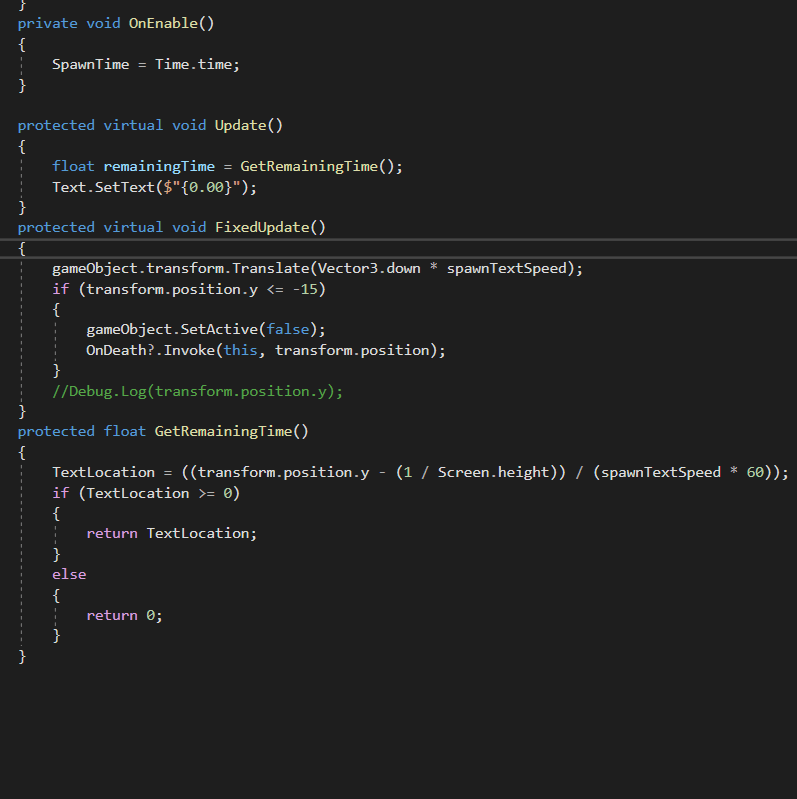
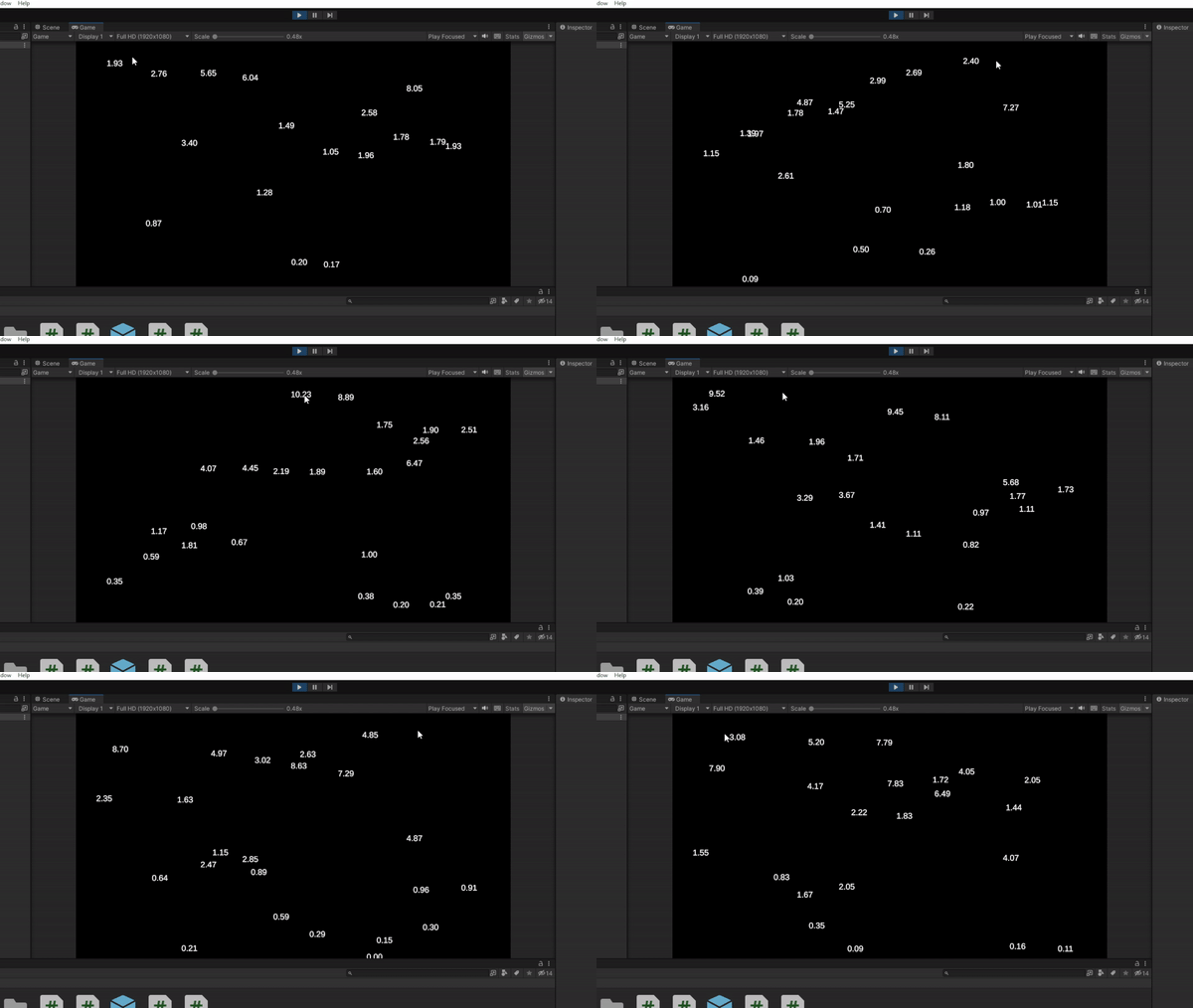
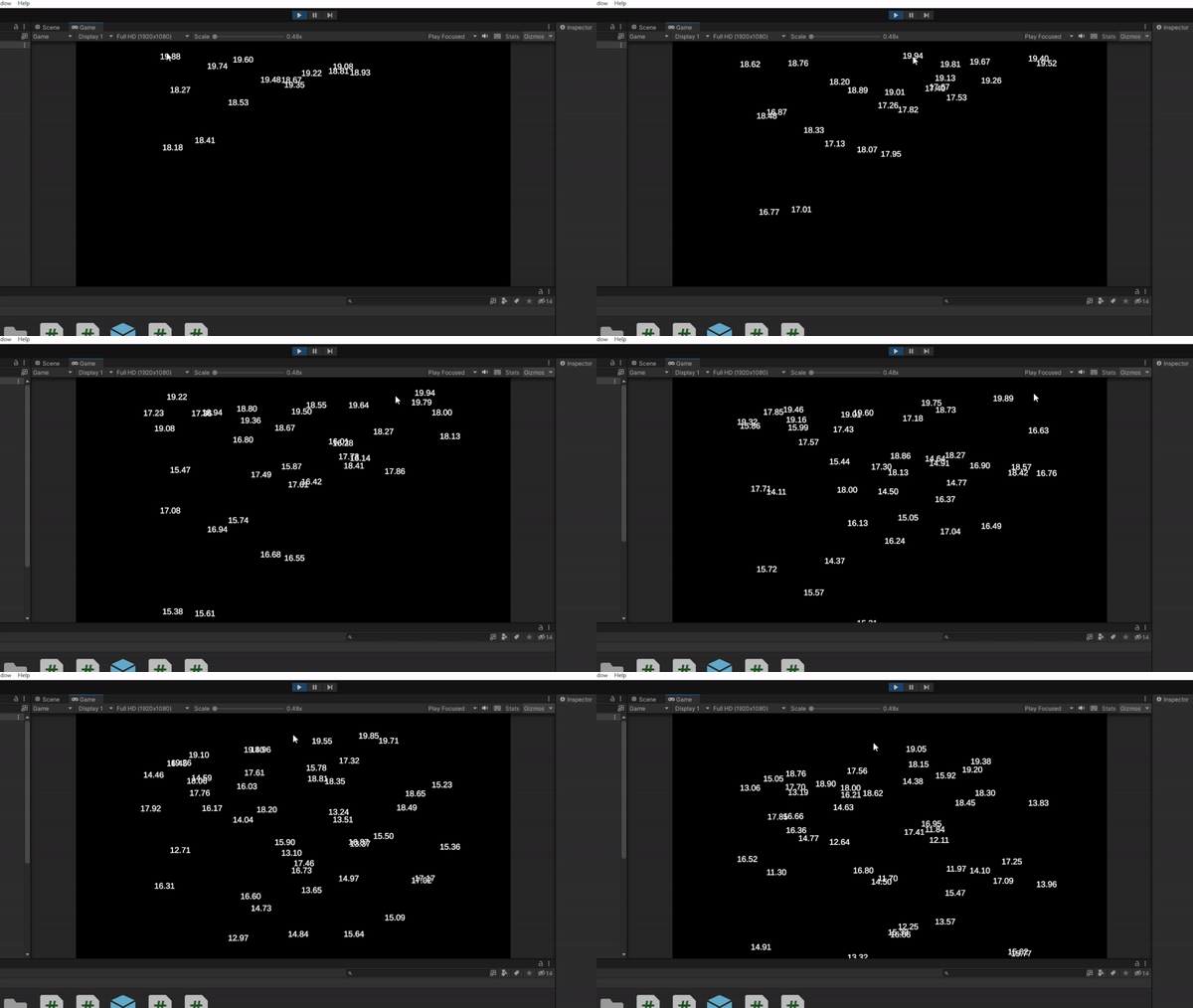
Today’s learning went a little off the rails. This lesson didn’t come from a tutorial. In fact, it came from my brother! I told him how I returned to programming, and in Unity specifically, so he challenged me. I showed him my previous post with the number falling down and his response was, “It would be super cool if they showed the amount of time they had left until they reached the bottom!” My mind immediately rushed through some potential math, which I immediately found was incorrect after trying it in the script. However, after some quick math and writing the number down to get an easier visual of the problem, I got it. Now, I’m sure any mathematician or professional programmer would say this is simple math, but I’m sure newer programmers, and anyone who didn’t get a major in math, would fully disagree. With that said, here is what I came up with!
Alright, to get started I will admit this is the same previously made project as the previous post. That being said, I took my own advice by moving the move code over to the text script, as that allowed my to more easily do the math, and was an unnecessary extra file to begin with. I also changed the speed slightly. The equation I found works the best is (y-1/h)/s/fps or for a cleaner version, (y-1/h)/(s*fps) where y is the textbox’s position, h is the screen height, s is the textbox’s speed, and fps is the game’s set fps.
Today was an exciting day in learning programming! Not just did I learn how to create and destroy objects, I also learned how to give them motion when they are created, and how to register when the mouse is click, to create them at the mouse’s location!
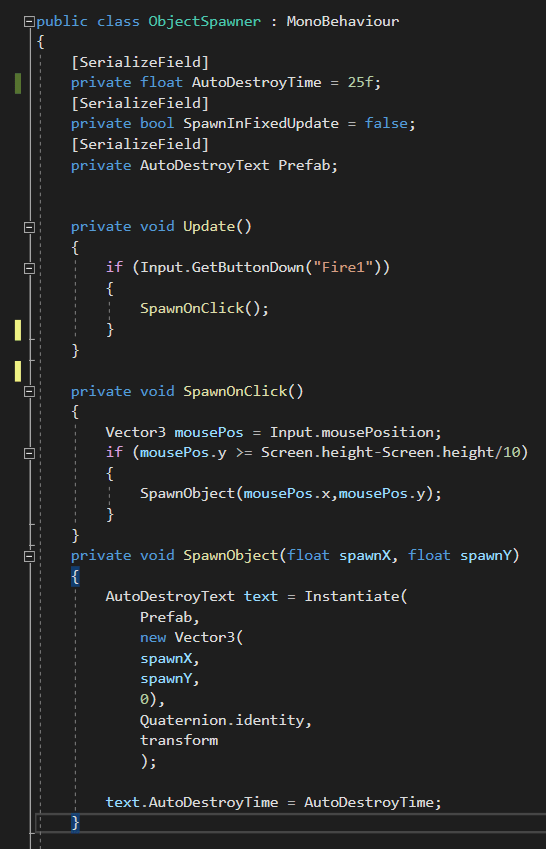
For the first time, I had to implement not one, but three scripts! From left to right we have AutoDestroyText, AutoDestroyMove, and ObjectSpawner. ADText is simply there to set the time it has left, display the time left, and destroy the textbox when said time is up. ADMove is there to set the speed to a random number based on the Max and Min options set in the script, then destroy the textbox after it reaches the bottom of the screen. Looking back at it, I could very much have put this code inside the ADText script, but I did not realize that at the time. Now for the file that does the heavy lifting, the ObjectSpawner script. This script was originally designed to spawn a textbox at a random location every update. However, I changed it to create a textbox at the location of the mouse anytime it registers a left click. Now you may be wondering why I have the SpawnOnClick event, instead of having it happen in the update command, and my answer to that involves accidental code that I edited. That being said, it keeps the actual Update event much cleaner, allowing me to see more clearly, what is happening.







 Maverick Learns